
How to Run a Remote Playtest
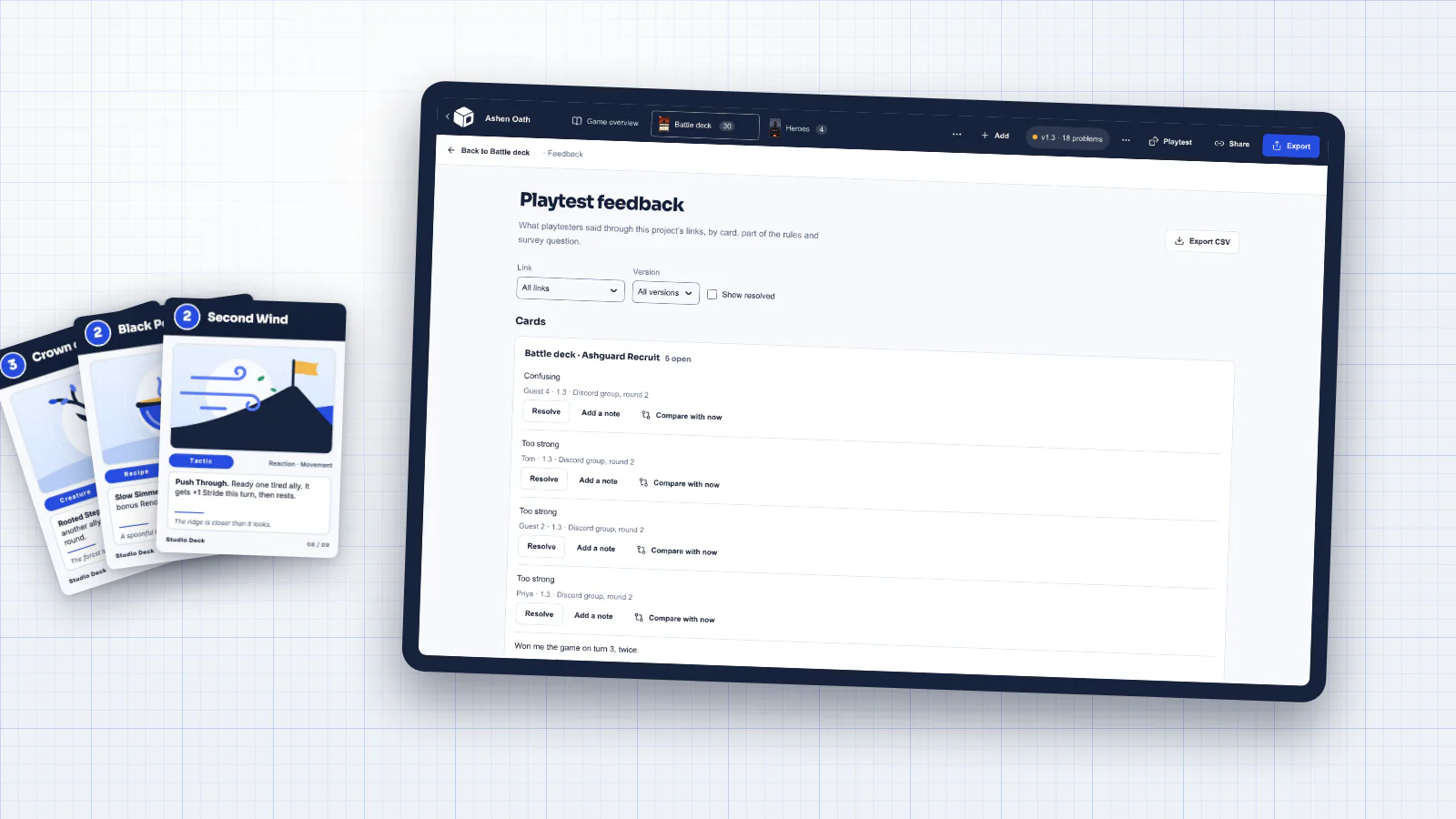
Choose what playtesters see, collect reactions to each card, comments on your rules and survey answers, and read it all on one page grouped by card.
· 5 min read
In this post
Send a playtest link, and playtesters can look through your cards, read your rules, deal a hand, react to cards and answer a short survey, all from their browser. Everything they say comes back to one page in your project, grouped by card, part of the rules and question. Here's how to set up a link for the test you want, and how to read what comes back.
The pictures here use Ashen Oath, a card battler starter kit. To publish a link first, see How to Share Your Game.
Step 1: Choose what playtesters see
When you publish a link, or later under Change settings…, What playtesters see has a switch for each tab:
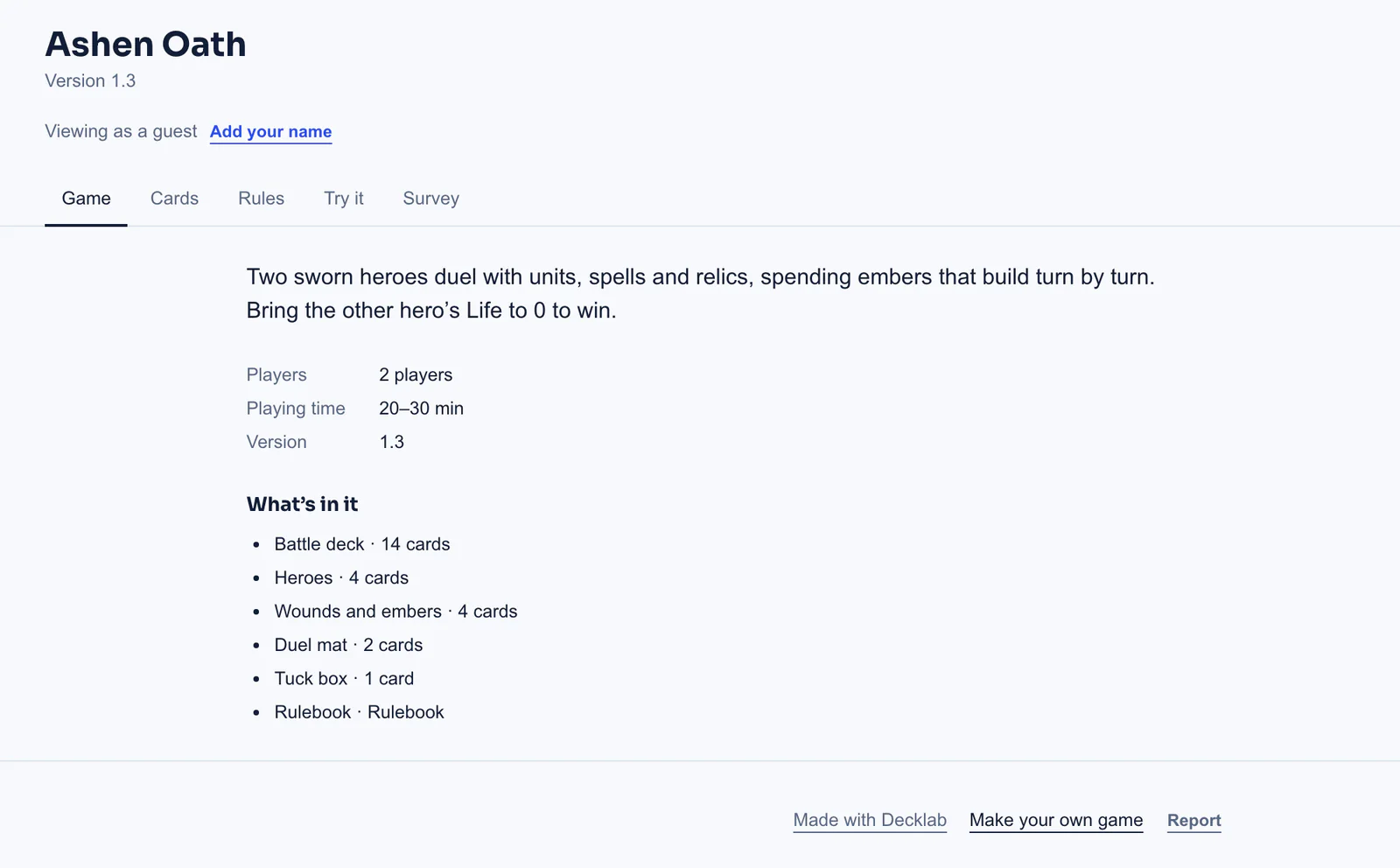
- Game always shows: your game's pitch, players and playing time (from the spec, where you've answered them), the version, and what's in it.
- Cards: each deck as a grid, with a filter for each choice column. A card opens large with its back.
- Rules: each rulebook, as one long page.
- Try it: a solo table that deals this version's cards.
- Survey: the questions playtesters answer at the end.
Turn off Cards and Try it for a blind test of your rules: playtesters read the rulebook without seeing the cards first. How to Run a Blind Playtest Online explains why that's worth doing.
Step 2: Add notes and a PDF, if you want
- Designer's notes: a deck's text columns that no card prints, such as a "Notes" or "Why this card" column, shown under a card opened large. Off by default, so your working stays yours.
- Print-and-play PDF (optional): attach a PDF up to 50 MB and playtesters get a Download tab to print it at home. Update link keeps it; replace or remove it in the link's settings.
Step 3: Set the survey
Every link asks five questions under Survey:
- How much fun was it? (a rating, 1 to 5)
- How did the length feel? (Too short, About right, Too long)
- What was confusing?
- What would you change?
- Would you play again? (Yes, Maybe, No)
With Pro, edit them under Survey questions: change the words, make a question a Rating, Choice, Short text or Long text, add your own (up to 20), reorder or remove them, or go back with Use the default questions. Playtest Feedback Questions That Actually Help has advice on what to ask.
Step 4: What playtesters do
Playtesters need no account. The first time they send something, a quick check makes sure they're a person.
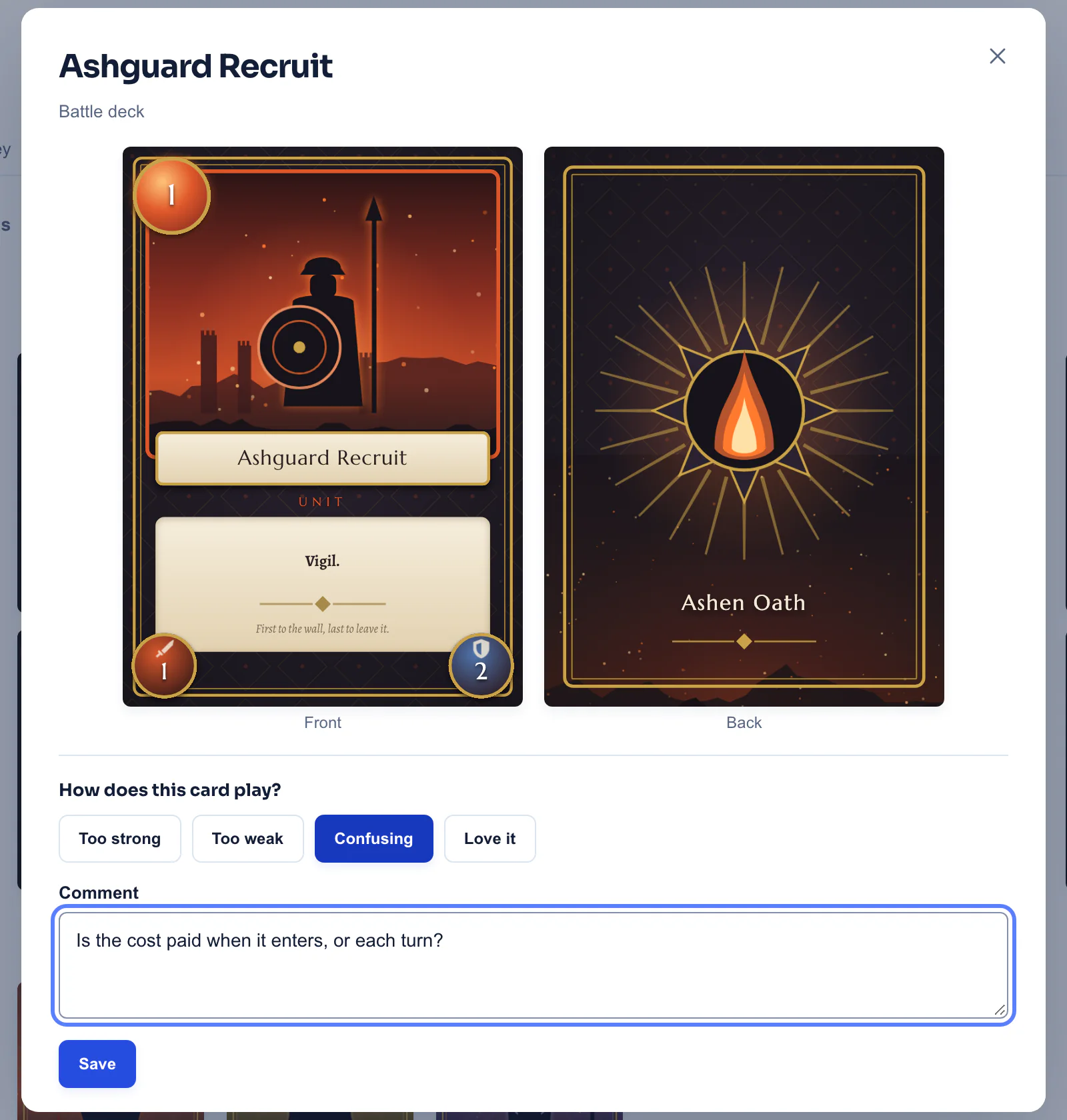
- On a card: open it large and pick a reaction under How does this card play?: Too strong, Too weak, Confusing or Love it. Add a Comment if they want.
- On the rules: Comment on the rules lists the rulebook's headings and paragraphs; they pick one and write what they noticed.
- In the survey: answer what they like and skip the rest, then Send answers. They can change their answers while the link is live.
Only you see what they send. Other playtesters don't. Feedback is kept against the version they were shown, so a tab left open on 1.2 keeps its feedback on 1.2 after you update the link.
Step 5: Read the feedback
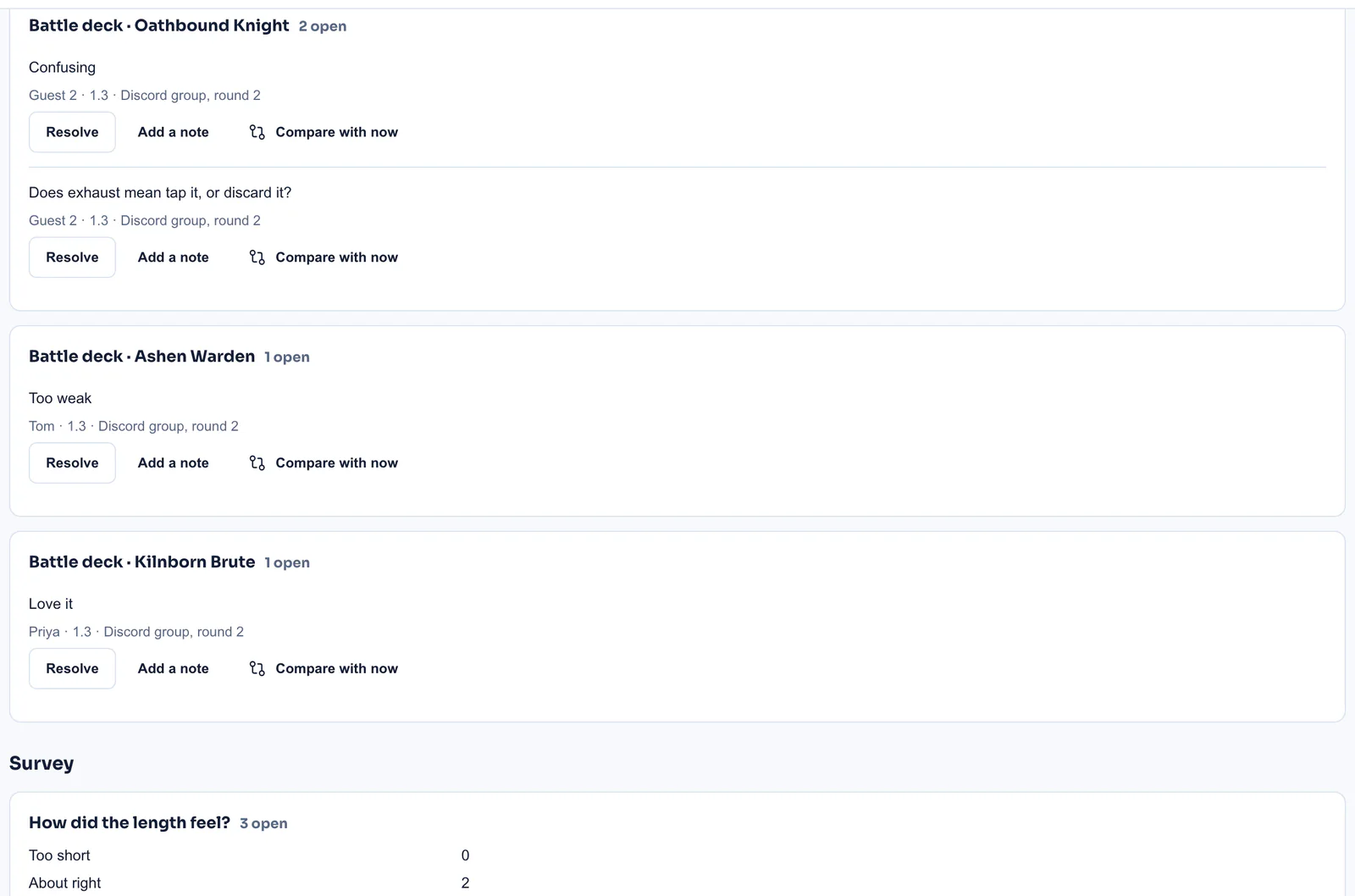
Open More › Playtest feedback in your project. Feedback is grouped under Cards, Rules and Survey, with the most open first:
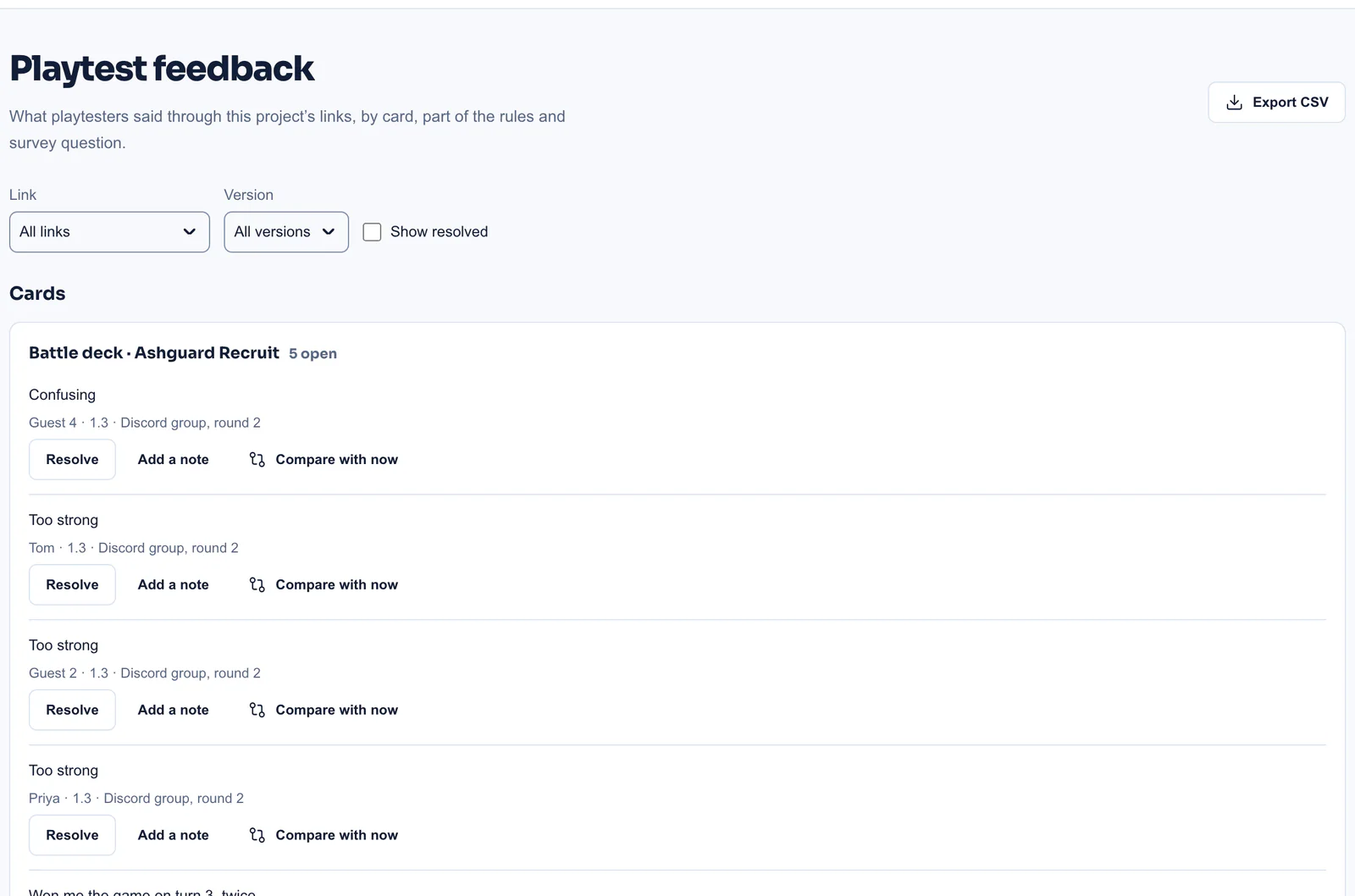
- Each card or paragraph shows what was said about it, who said it ("Guest 3", or the name they gave) and which link and version.
- Each survey question sums up its answers: a rating's average ("Average 4.2 of 5 from 6"), a choice's counts, each written answer.
- Filter by Link and Version.
What a card or paragraph was is worked out from the version the feedback was about, so it still reads right after you've renamed or rewritten it.
Step 6: Act on it
- Resolve a piece of feedback once you've dealt with it. Resolved feedback is hidden unless you tick Show resolved. If the playtester edits it, it opens again.
- Add a note, which only you see, to remember what you decided.
- Compare with now shows what's changed in your project since the version the feedback was about.
- Export CSV (Pro) downloads every reaction, comment and answer as a spreadsheet, with its link and version.
Know when new feedback arrives
- In the project: a note under the header says how much new feedback has come in since you last looked, with Read feedback.
- On your cards: in Deck view, a card with open feedback has a badge, and in Data mode its panel lists the feedback.
- By email: turn on Email me new playtest feedback in Account › Shares for one email a day when there's something new. It says how much, never what playtesters wrote.