
How to Share Your Game
Publish a playtest link to a copy of your game: anyone opens it in a browser with no account, and you update, change or revoke it whenever you like.
· 4 min read
In this post
A playtest link puts your game in front of people who aren't in the room. They open it in any browser, with no account and nothing to install, and see a copy of your cards and rules as they were when you published. Decklab AI keeps that copy on its server, so you need an account to publish one. Every account gets one live playtest link; Pro gets as many as you like.
The pictures here use Ashen Oath, a card battler starter kit.
Step 1: Open Share
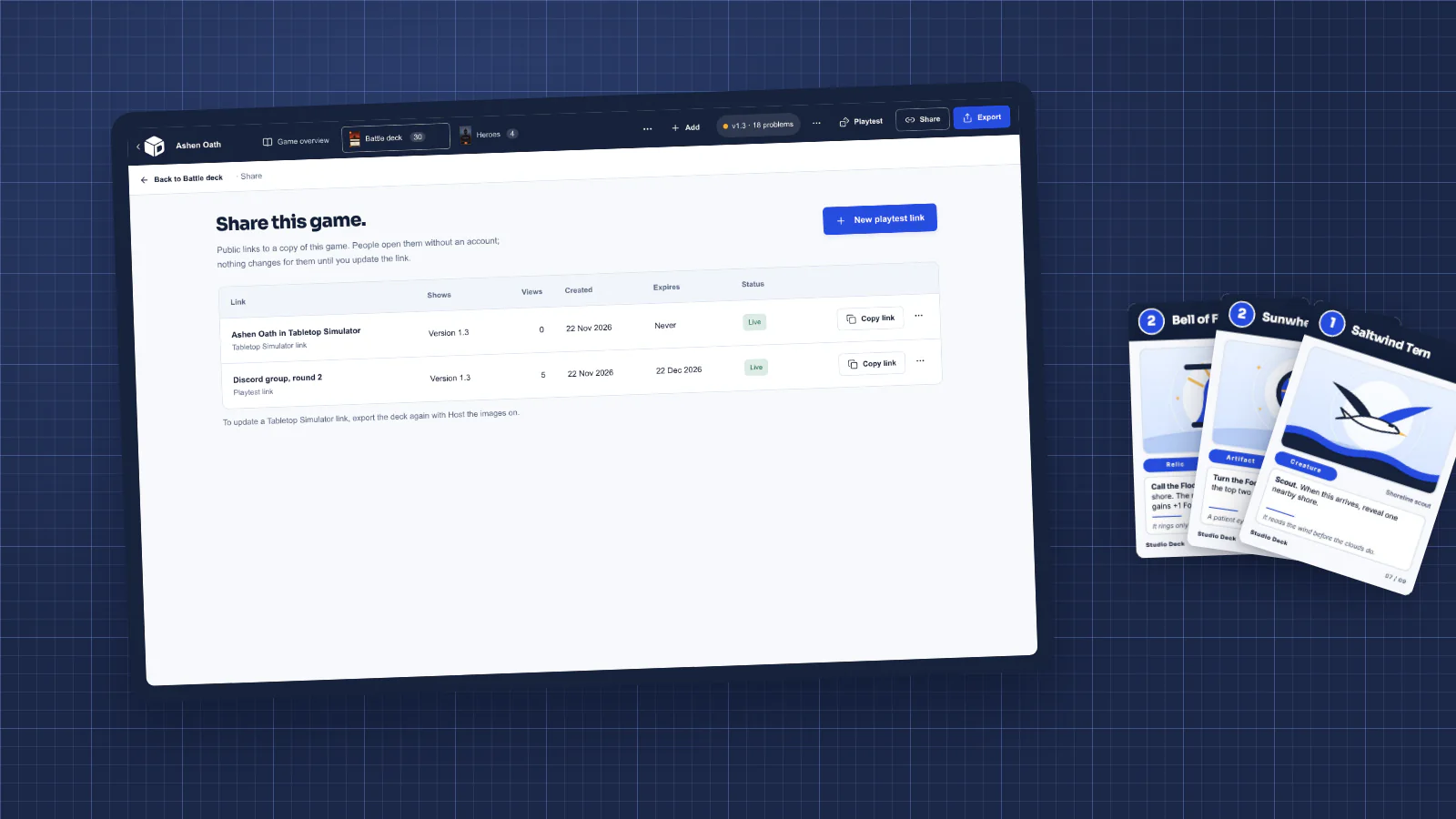
Open your project and choose Share in the project header, beside Playtest and Export. On a phone, it's in the More menu.
Signed out, Share says a link needs an account and offers Sign in, which brings you back here. Your project stays in your browser as it is either way.
Step 2: Publish a playtest link
Choose New playtest link and fill in:
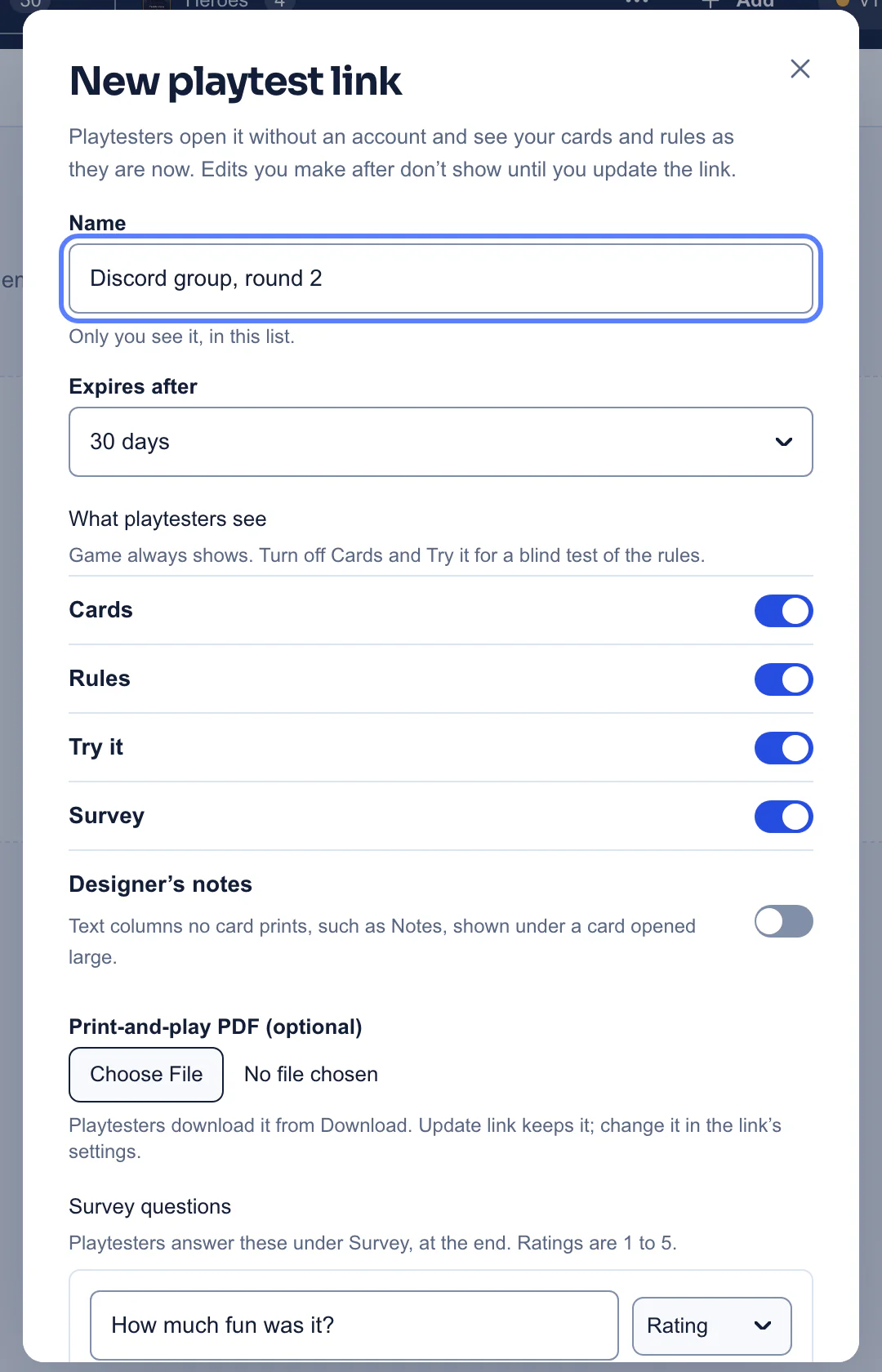
- Name: what you call this link, such as "Discord group, round 2". Only you see it, in your list of links. Playtesters see your game's name.
- Expires after: 7, 30 or 90 days, or Never. 30 days is the default. An expired link closes by itself.
- What playtesters see: which tabs the link shows, the designer's notes, a print-and-play PDF and the survey. How to Run a Remote Playtest goes through each.
Choose Publish link. Decklab AI saves what you're working on, uploads any images and fonts the server doesn't have yet, publishes the link and copies it. Paste it into your group chat, email or Discord.
Step 3: Keep the link up to date
A link shows the game as it was when you published it. Edit your cards afterwards and playtesters keep seeing the old ones, which is what you want in the middle of a playtest.
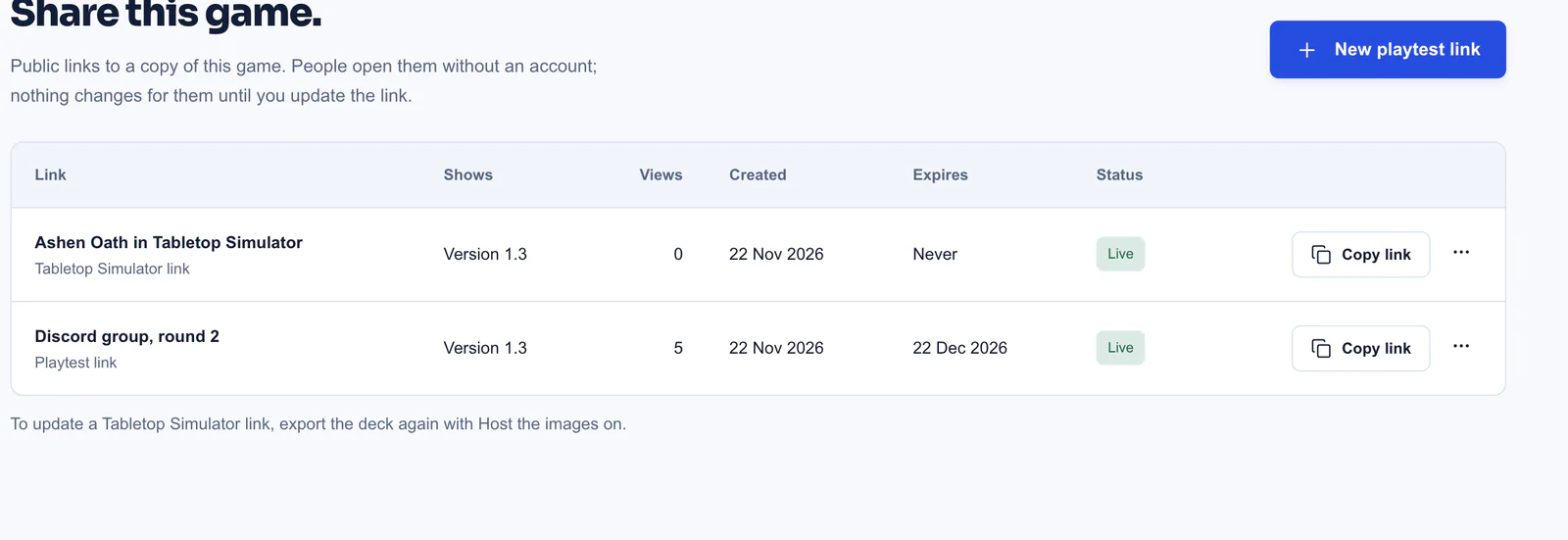
When you're ready for them to see your changes, open the link's ⋯ menu and choose Update link. If the link shows your game's current version and you've changed things since, Decklab AI asks first: Keep 1.3, or make this 1.4? A new number tells playtesters, and your feedback, which version is which. How to Version Your Game explains versions.
The list shows which version each link shows (Shows), how many people opened it (Views, one per person a day), when it was made and when it expires.
Step 4: Change a link's settings
Change settings… in the link's menu changes its name, its expiry (counted from today) and what playtesters see. The link stays the same, so nobody needs a new one.
Step 5: Revoke a link
Revoke… closes a link at once. Anyone who opens it sees that it's closed. A revoked link can't be opened again, so publish a new one if you need it back.
On a free account, revoking your live link frees its place for a new one.
All your links in one place
Account › Shares lists every link you've published, from every project, with the plan's count ("1 of 1 playtest links"). You can copy, change and revoke a link there even if its project is no longer in this browser. Update link needs the project, so it says so.
If you delete a project for good from the trash and it has live links, Decklab AI asks whether to keep them live or revoke them first.
What playtesters can do
- Open the link without an account. They show as "Guest 1", "Guest 2" and so on, or with a name they choose under Add your name. Only you see who they are.
- Look through the cards and rules, deal a hand on Try it, and download your PDF.
- React to cards, comment on the rules and answer the survey. Their feedback comes to your Feedback page.
- Report a link that breaks the rules. We look at every report.
Plans
| Free | Pro | |
|---|---|---|
| Live playtest links | 1, across all your projects | As many as you like |
| Survey questions | The standard five | Your own |
| Feedback as CSV | No | Yes |
Playtesters never need an account or a plan.