
How to Keep a Playtest Log
Log each session's version, length, players, winner and card notes, by hand or from the solo table, and see average length, win rates and standout cards.
· 3 min read
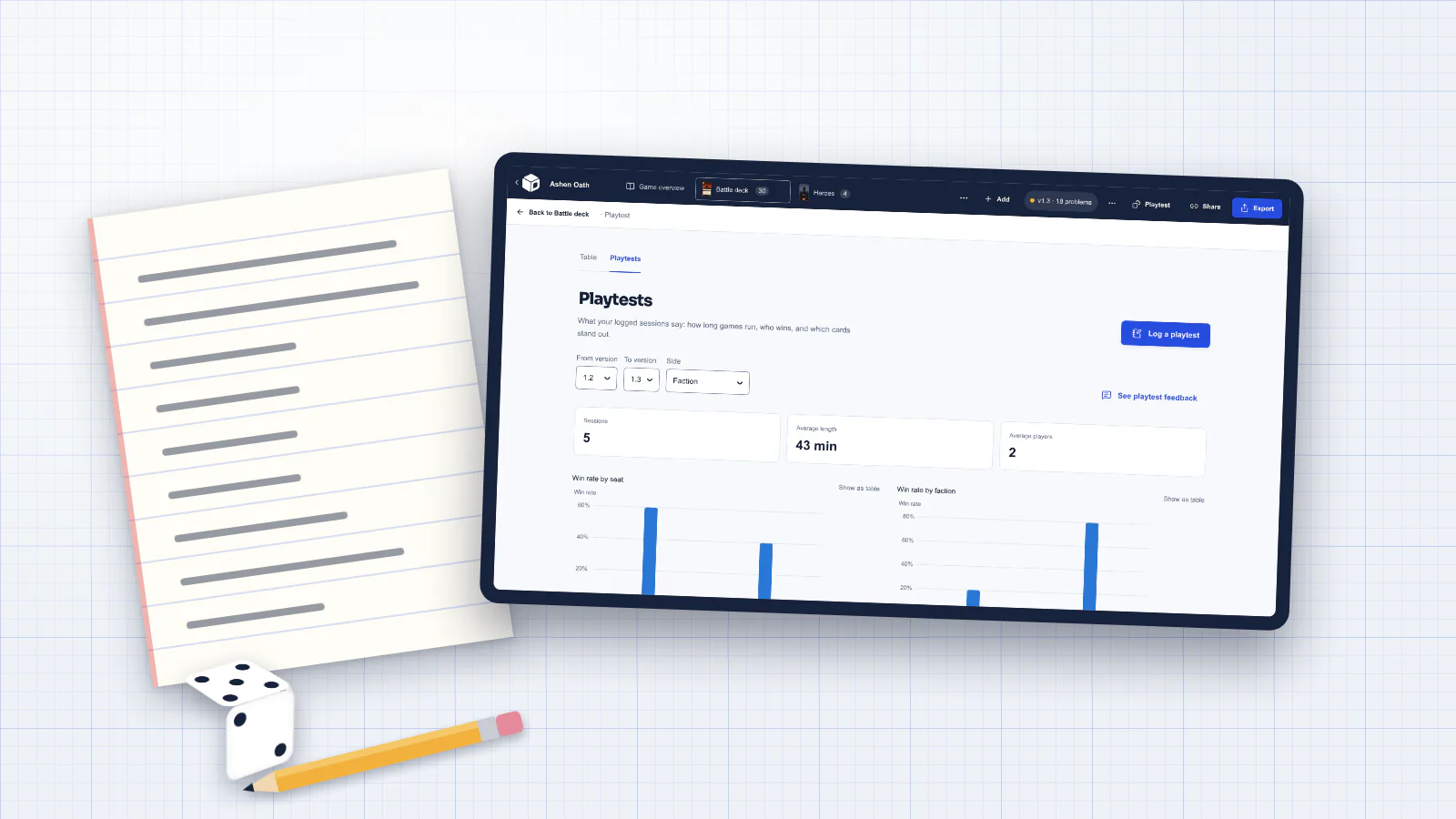
In this post
After a few weeks of playtesting, the details blur: which version was that game on, who won, how long did it take, which card did everyone complain about? A playtest log keeps them. Decklab AI has one in every project: log a session by hand after a game at the table, or straight from the solo table, then see what all your sessions say together. It's free for everyone, and it travels with your project.
The pictures here use Ashen Oath, a card battler starter kit.
Step 1: Open the Playtests tab
Choose Playtest in the project header. The page has two tabs: Table, the solo table, and Playtests, your log and what it adds up to.
Step 2: Log a session
On Playtests, choose Log a playtest. Only the date is needed; everything else helps you compare later:
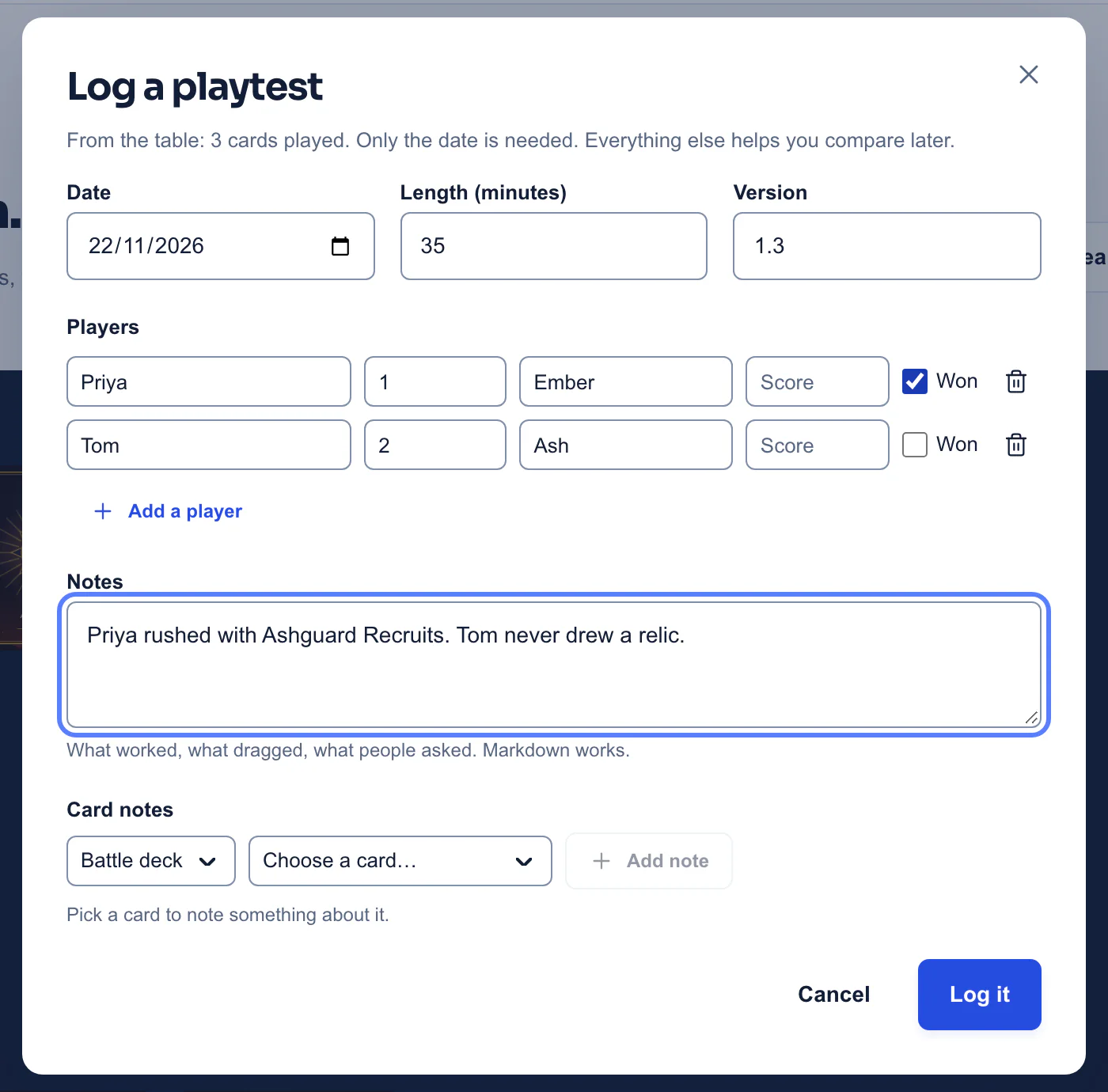
- Date and Length (minutes).
- Version: your game's version when you played it. It starts as the current one.
- Players: each player's name, and if you like their seat, faction and score. Tick Won for the winner (or winners). Add a player for more.
- Notes: what worked, what dragged, what people asked. Markdown works.
- Card notes: pick a card and note something about it, with a tag: Too strong, Too weak, Confusing or Never used.
Choose Log it. Each session shows in All sessions, newest first, with Edit and Delete.
What to Write Down After Every Playtest has a routine for the notes.
Step 3: Log from the solo table
When you try a game on the Table tab, choose End and log in its header. The log opens with the length filled in and the cards you played counted ("From the table: 12 cards played"), ready for your notes.
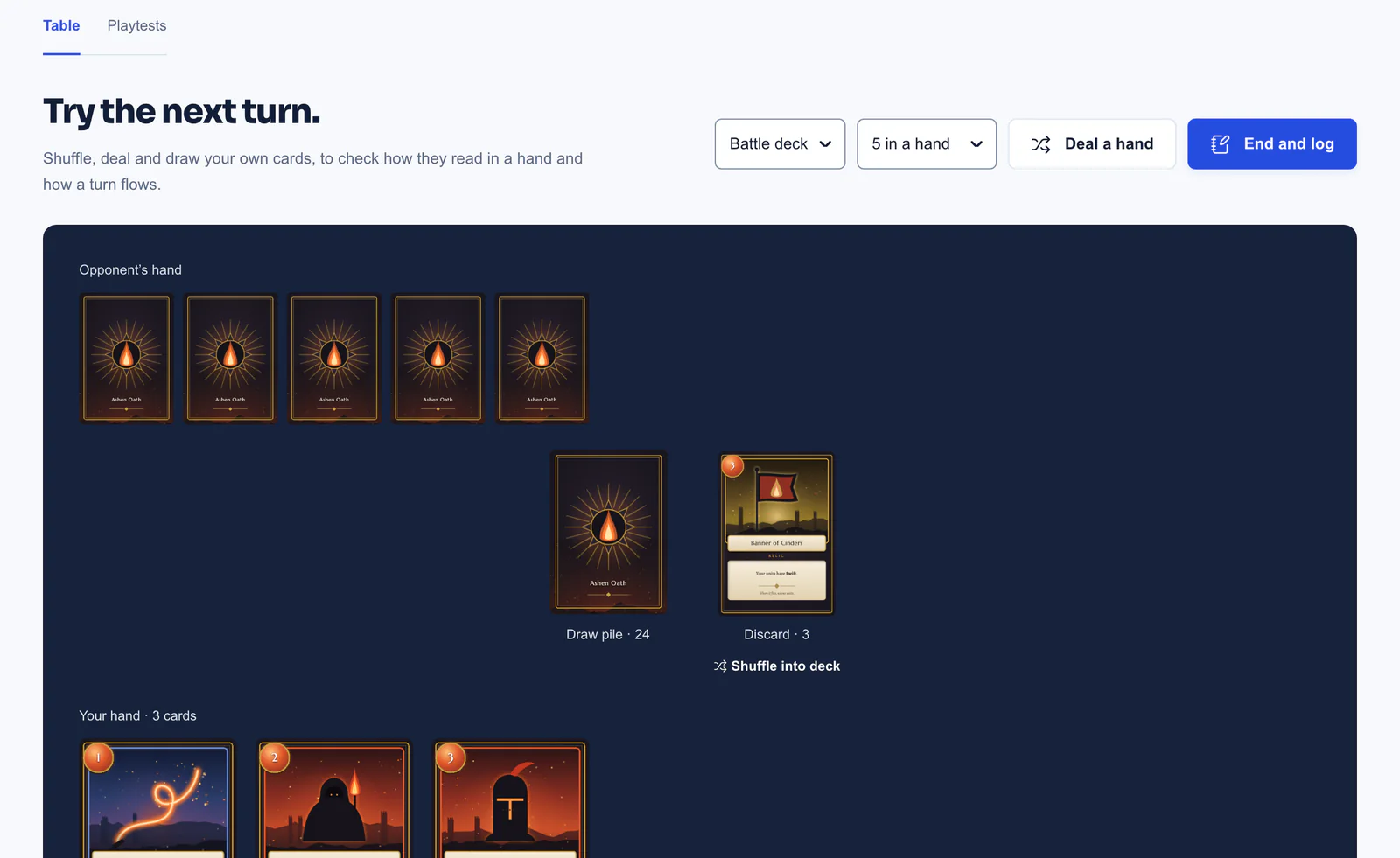
The table itself still changes nothing in your project: End and log only saves the session to your log.
Step 4: Read the summary
Above your sessions, Playtests adds them up:
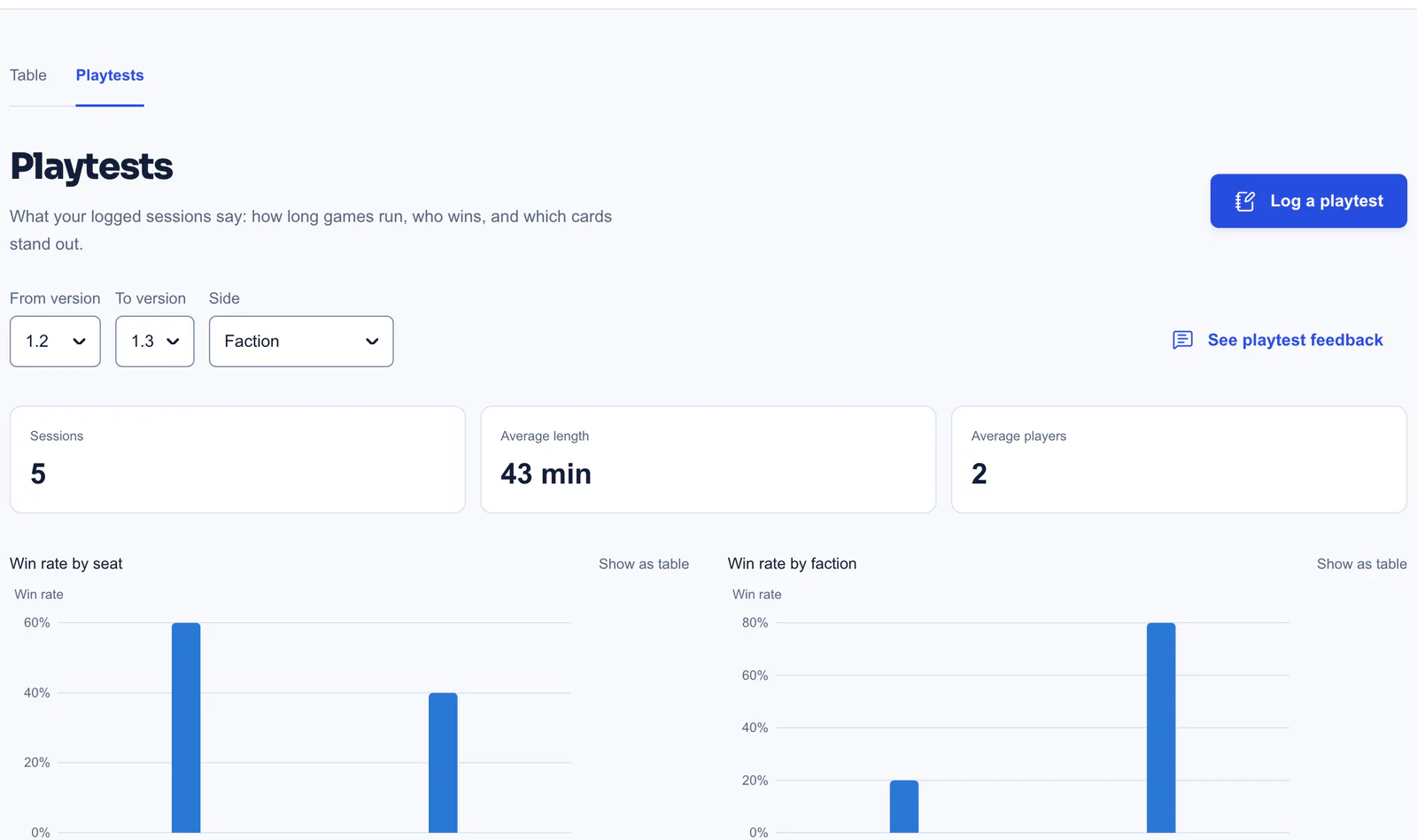
- Sessions, Average length and Average players.
- Win rate by seat, and by faction (or any choice column of a deck, under Side), once you've marked who won and where they sat.
- Cards: the Most played and Least played cards from sessions logged at the table, and the cards with the most notes, by tag.
- Over versions: average length and card notes by version, so you can see whether a change helped.
Pick From version and To version to look at part of your history. With one version picked, See playtest feedback for 1.3 opens the feedback playtesters sent through links on that version.
Where your log lives
Your log is part of the project. It's in your backups (.decklab files), it syncs to your other devices if the project backs up, and it's free on every plan.
Printing a log sheet to fill in at the table? The free playtest sheets tool makes one, with a feedback form for your playtesters:
Playtest feedback and log sheets
Print a playtest feedback form for your testers and a log sheet for each session: edit the questions and fields, add your game’s name and version, and download a PDF on Letter or A4, one or two to a page. Free, in your browser, with no sign-up.