
How to Share Your Tabletop Simulator Deck With Friends
With Host the images, your Tabletop Simulator saved object links your cards on the web, so every player sees them and the file works on any computer.
· 3 min read
In this post
A Tabletop Simulator saved object usually points at images on your own computer, so you see your cards and your friends see blank ones. Decklab AI Pro can host the images for you: the saved object links them on the web, so every player at the table sees your cards, and the file works on any computer. It's one switch in Export.
The pictures here use Ashen Oath, a card battler starter kit.
Step 1: Choose Tabletop Simulator in Export
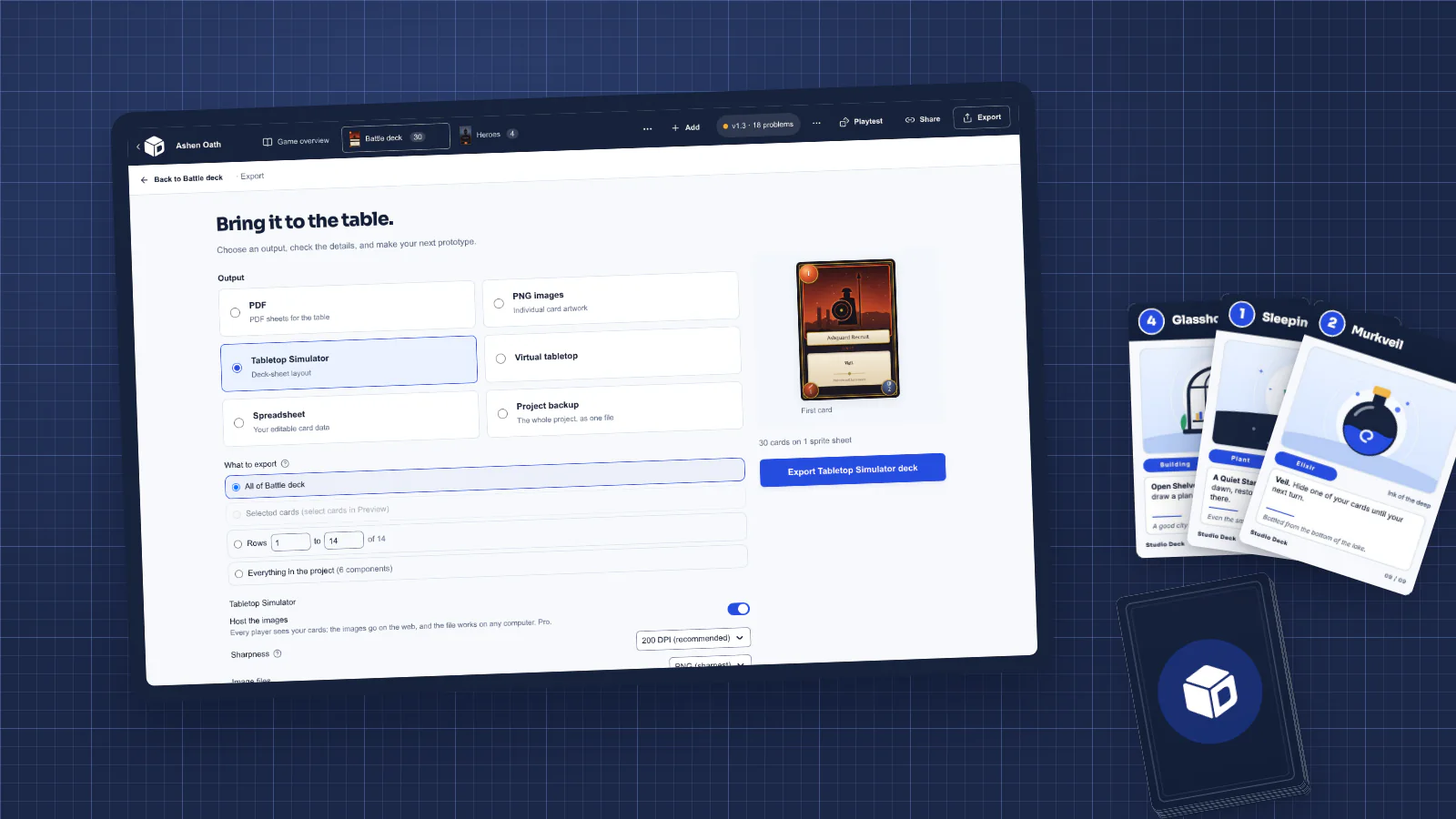
Choose Export in the project header, then Tabletop Simulator under Output. Pick what to export as usual: a deck, every component, or only the cards changed since a print.
Step 2: Turn on Host the images
Turn on Host the images. The Saved Objects folder isn't asked for any more, as nothing links to your computer.
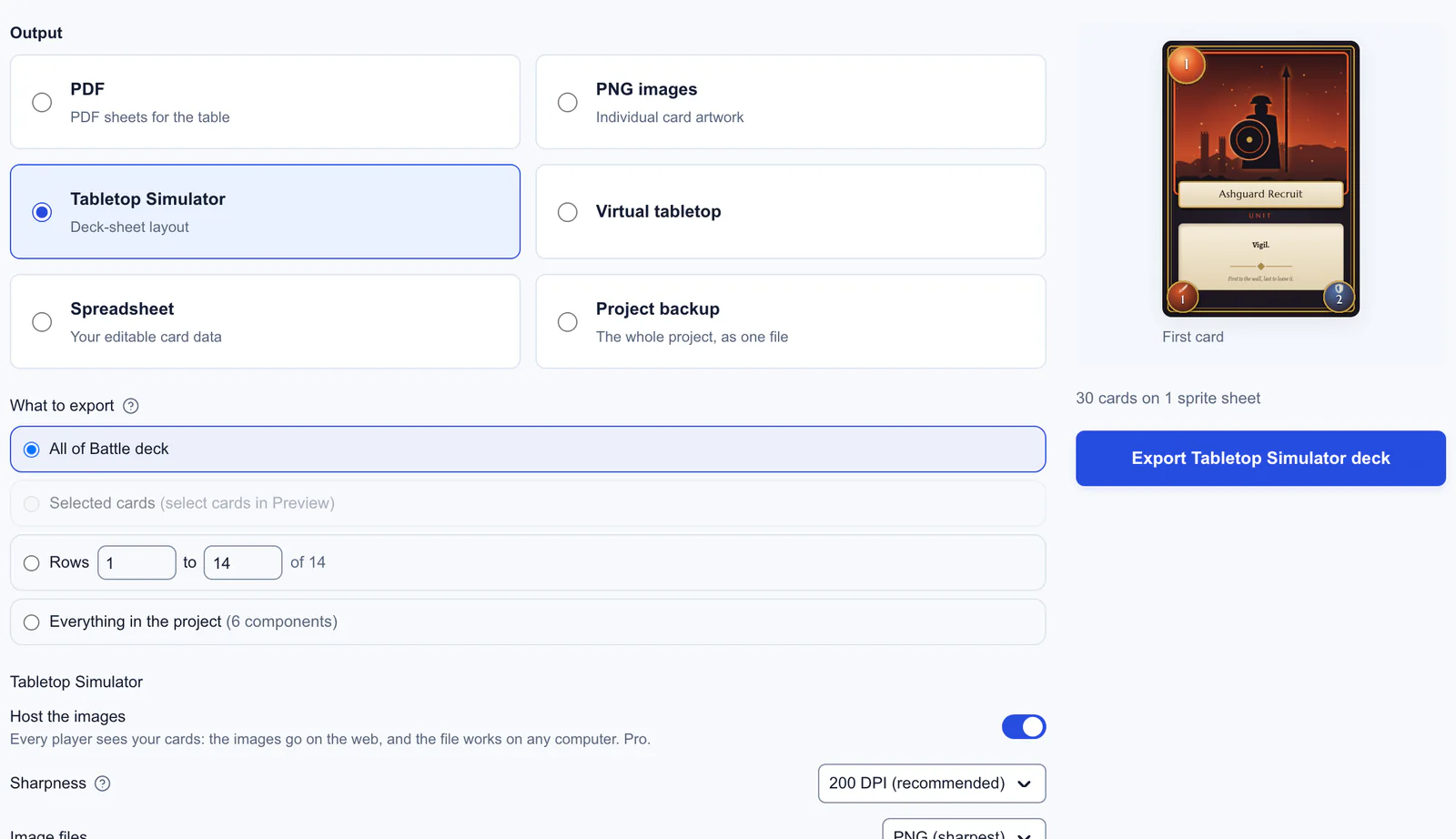
Hosting is part of Pro. On a free account the switch is off, with Upgrade to Pro beside it; the export without hosting stays free, as every export is. Hosting also needs you signed in and online.
Choose your Sharpness and Image files as usual. JPEG files are several times smaller, so they load faster for everyone at the table.
Step 3: Export
Choose Export Tabletop Simulator deck. Decklab AI draws the sheets, uploads them, and downloads a small zip: the saved object (a .json file), its thumbnail and a how-to.
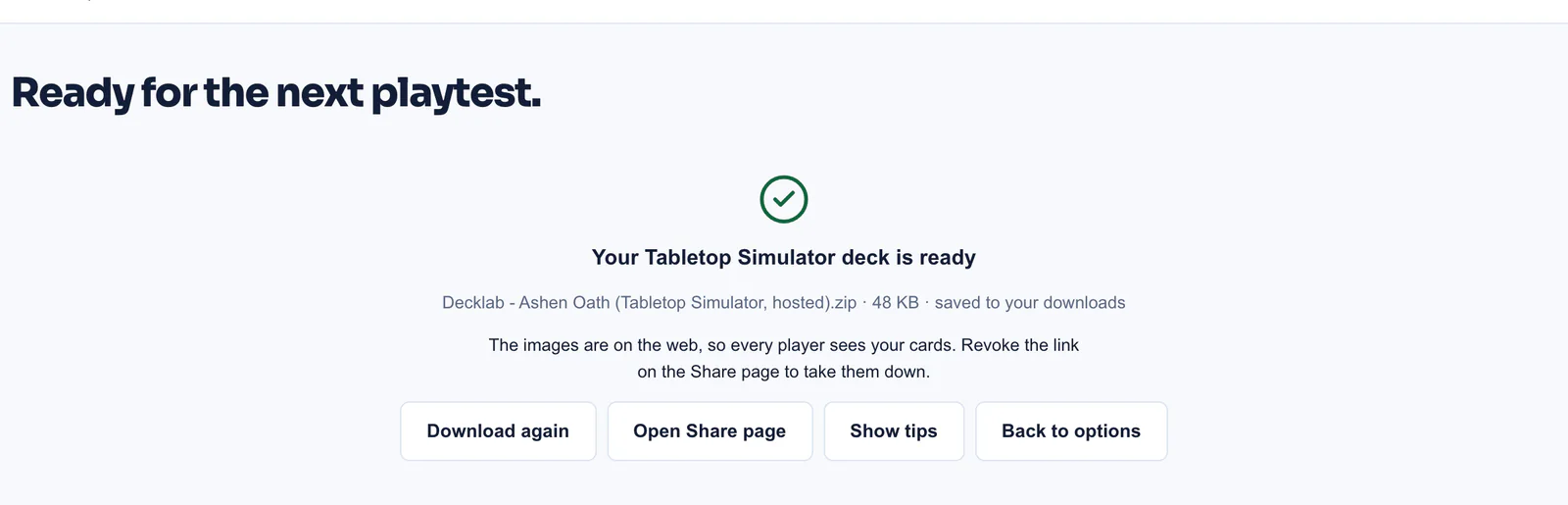
The images go to a long, random web address of their own. They count towards your cloud storage.
Step 4: Load it in Tabletop Simulator
Unzip the .json and the .png into your Saved Objects folder:
- Windows: Documents › My Games › Tabletop Simulator › Saves › Saved Objects
- macOS: Library › Tabletop Simulator › Saves › Saved Objects
- Linux: .local › share › Tabletop Simulator › Saves › Saved Objects
Start Tabletop Simulator, open a game, then Objects › Saved Objects and click your deck. Host a multiplayer game and spawn it there: every player's Tabletop Simulator loads the images from the web.
Step 5: Update the deck
Changed some cards? Export again with Host the images on. Decklab AI gives your link new images at new addresses, because Tabletop Simulator keeps showing what it has already downloaded for an address. Load the new saved object.
The old images stay up for 7 days, so a game already in progress doesn't lose its cards, then they're deleted.
Step 6: Take it down
Each hosted deck is a Tabletop Simulator link on your project's Share page. Revoke… deletes its images at once, so the deck stops loading for anyone. A player's Tabletop Simulator may still show cards it downloaded before.
On the Share page, a Tabletop Simulator link has no Update link: export again instead.