
Reprint Only the Cards That Changed
After a playtest you change six cards. Here's a routine for reprinting just those six, with a version on every card and nothing missed.
· 4 min read
In this post
After a playtest you change six cards. Then you print the whole deck again, 90 cards on ten sheets, cut them all out, and throw away 84 cards that were fine. Or you try to print only the six, miss the one whose template you nudged, and the next game has two versions of the same card in it.
Reprinting only what changed saves paper, ink and an evening of cutting, as long as you know exactly which cards changed. Here's a routine that makes that certain.
1. Number your versions
Give each printed version of your game a number: 0.1, 0.2, 0.3. It doesn't need to mean anything beyond "the one we printed on the 14th". What matters is that the number is on the cards.
A small line in a corner, like "v0.3 · 12" (the version, then the card's number in the deck), solves the commonest playtest problem: two copies of a card on the table and nobody sure which is current. When you sort the reprint into the deck, the old cards are the ones with the old number.
In Decklab AI, set the version in Project settings and add the Version stamp from Insert › Text. It prints {{$version}} and {{$card.number}}, so it updates by itself.
2. Let the app remember each print
Writing down what you printed is the step everyone skips. Decklab AI does it for you: every PDF, PNG or Tabletop Simulator export records a print, with the version, the date, and a fingerprint of exactly how each card looked. It also saves a snapshot, "Printed 0.3", so the version you played is never lost.
When you export again without changing the version, it asks: Keep 0.3, or make this 0.4? One click, and the new number is on the new cards.
3. See what changed since the print
A card has changed if it would look different printed: new text, a new number, a new picture, a moved element, a new colour in its template. It hasn't changed if you only edited a note column that isn't on the card.
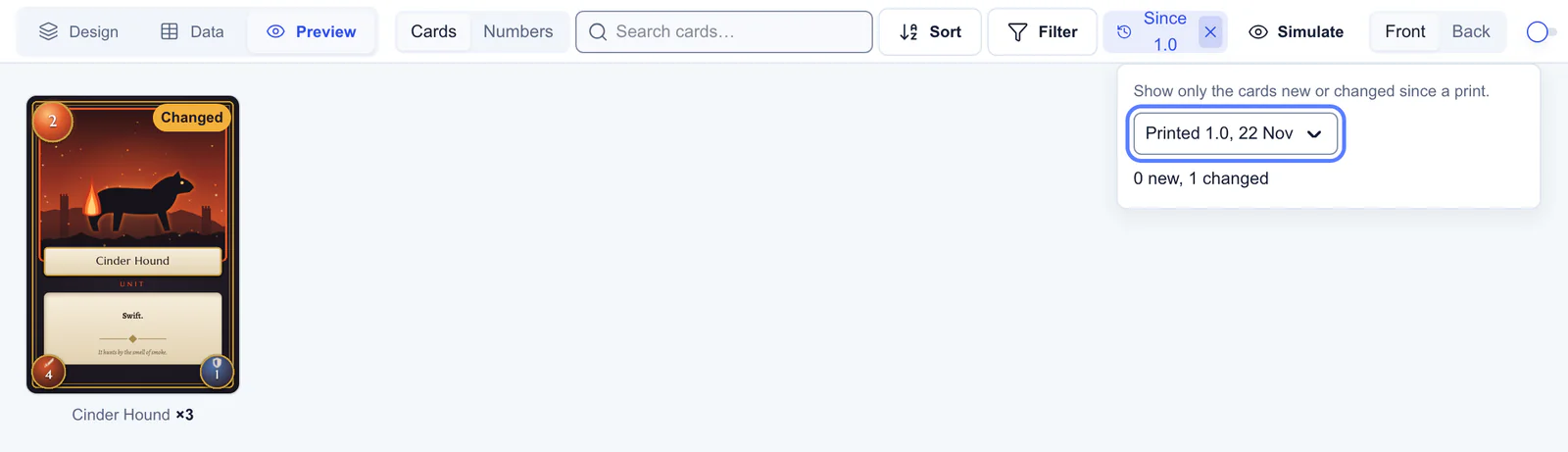
That's what Changed since… in a deck's Preview compares. Pick the print, and you see only the cards that are New or Changed since, each with a badge, and a count. Cards you deleted since then are listed by name, so you know what to take out of the deck too.
Because it compares how each card looks, it catches the changes you forget: the template tweak that touched every relic, the icon you swapped, the back you recoloured (which changes every card's back).
4. Export just those cards
In Export, under What to export, choose Changed since and the print. The PDF has exactly the new and changed cards, across the whole project, and both sides of each when you print double-sided.
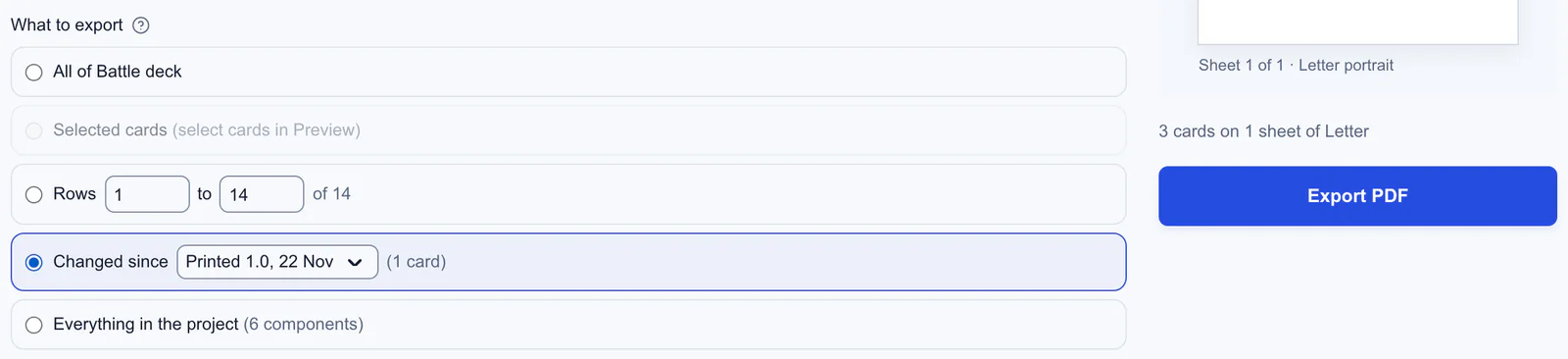
Print them, cut them, and swap them in. Six cards, one sheet.
5. Check what changed, before the next playtest
Before you sit down to play, it's worth knowing what's different. On the Snapshots page, Compare any print with now, or two prints with each other. What changed lists each card's changes ("Attack: 3 → 4"), cards added and removed, template, rule and rulebook changes, and shows any card's two versions side by side.
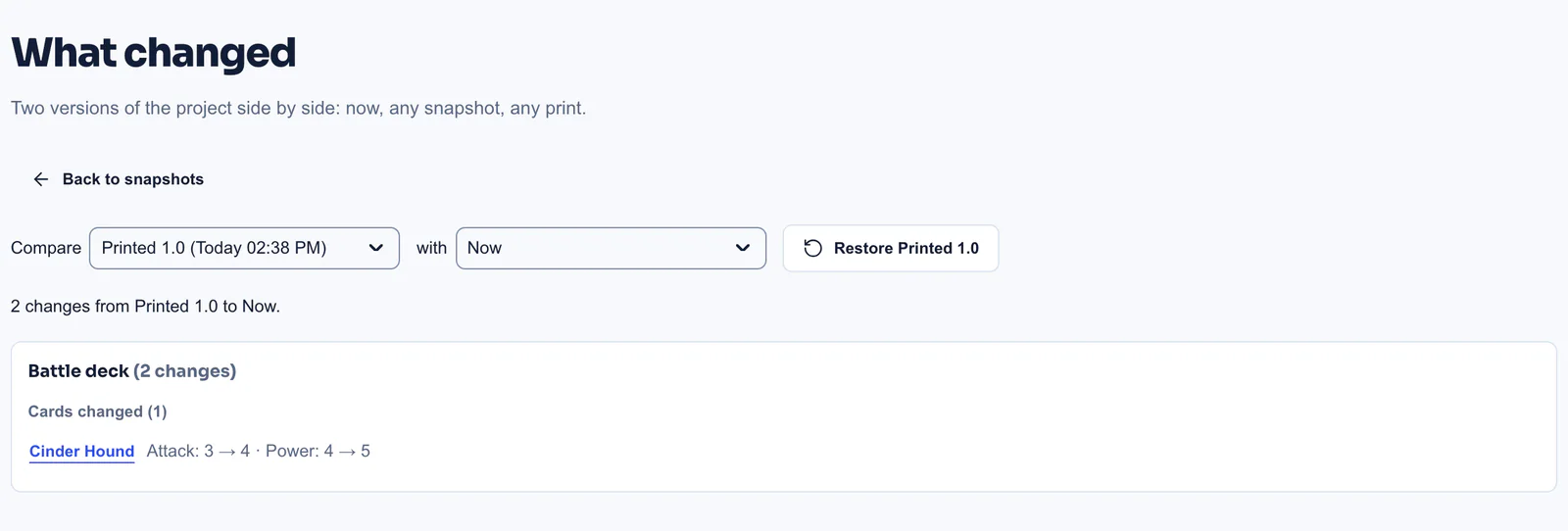
That list is your playtest brief: "this time, watch the Cinder Hound."
A routine for every playtest
- Play, and take notes.
- Change the cards.
- Compare with the last print, and check every change is one you meant.
- Export Changed since the last print, and make it the next version.
- Swap the new cards in, bin the old ones.
How to Version Your Game has each step in detail.
Printing at home?
Before you print anything, make sure your printer prints at the right size, or your reprints won't match the cards they replace:
Printer calibration page
Print one Letter or A4 page with a 50 mm square, a poker card outline and rulers to check your printer prints cards at the right size, and learn how to fix it when it doesn’t. Free, in your browser, with no sign-up.