
How to Use Formulas in Your Card Data
Add a formula column to your cards, like a spreadsheet's: totals, rarities and icon rows that work themselves out on every card, every time a number changes.
· 6 min read

In this post
Some numbers on a card follow from others: a total of two stats, a rarity worked out from the cost, a row of icons as long as the attack. Type them by hand and they drift out of step the first time you rebalance. A formula column in Decklab AI works them out for you, on every card, every time a number changes. It works like a spreadsheet formula, and it's free on every plan.
The pictures here use Ashen Oath, a card battler starter kit, whose cards have Cost, Attack and Guard.
Step 1: Add a formula column
Open your deck and choose Data. Choose Add column at the end of the header row, give the column a name (say, Power) and pick Formula as its type.
To turn a column you already have into a formula, choose its header and pick Formula under Type. Decklab AI asks first, because the column's values will be replaced by the formula. Undo brings them back.
Step 2: Write the formula
Type the formula in the Formula box. Columns go in square brackets:
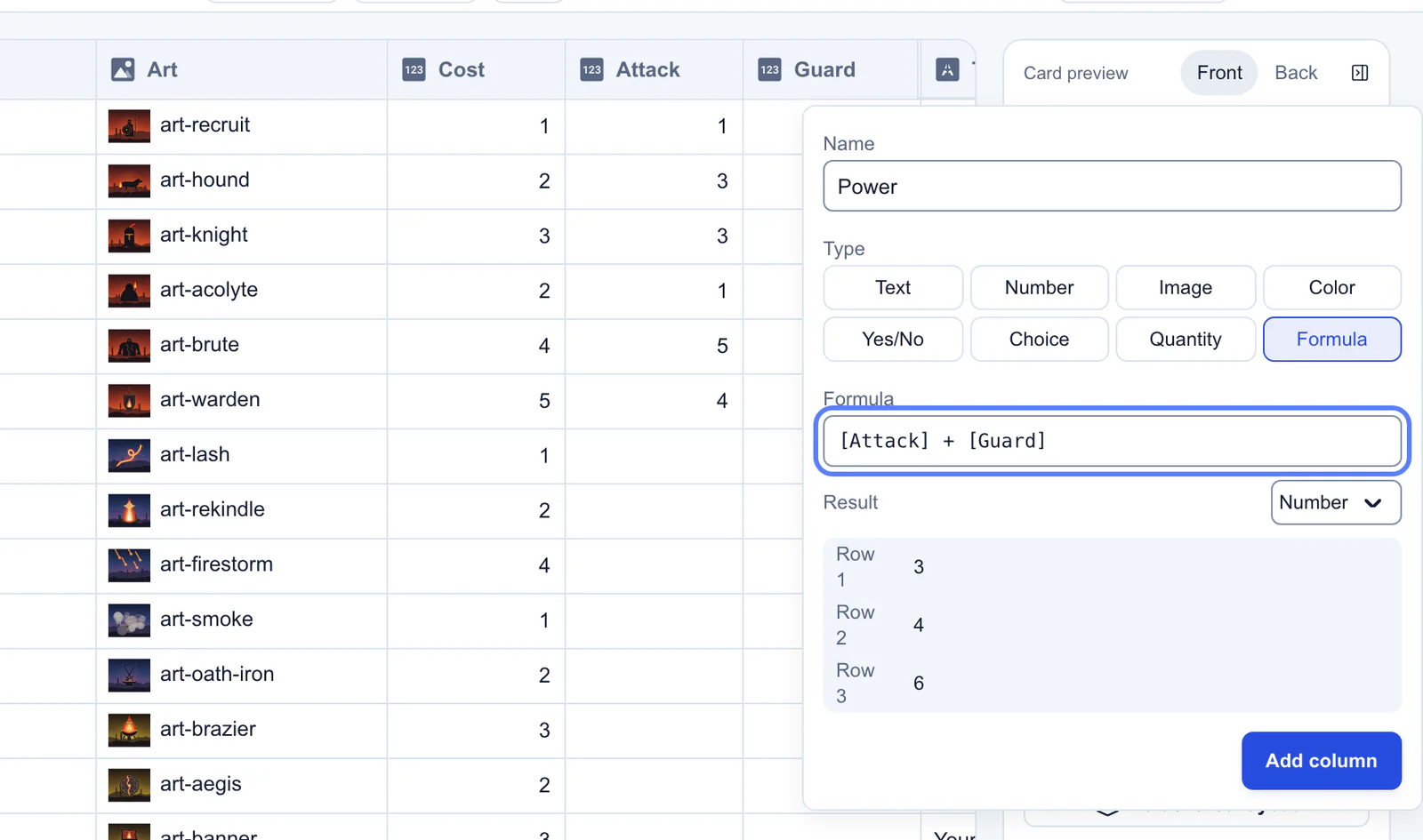
[Attack] + [Guard]
Type [ and the column names are offered as you go, so you don't have to remember how each one is spelled. Under the box, the results for the first three rows update as you type, so you can see straight away whether it does what you meant. A formula with a mistake can't be saved, and the box says where the mistake is.
Pick the result
Result is what the formula gives: Number, Text, Yes/No or Color. Decklab AI guesses it from the formula, and you can change it. A number result can be sorted, charted and compared in rules; a text one can be printed on the card.
Choose Add column and every row gets its value.
Step 3: Read it in the grid
Formula cells are calculated, so you can't type in them: the column's header has a small ƒ, and typing in one tells you to change the formula from the header instead. Change Attack on any card and its Power changes with it.
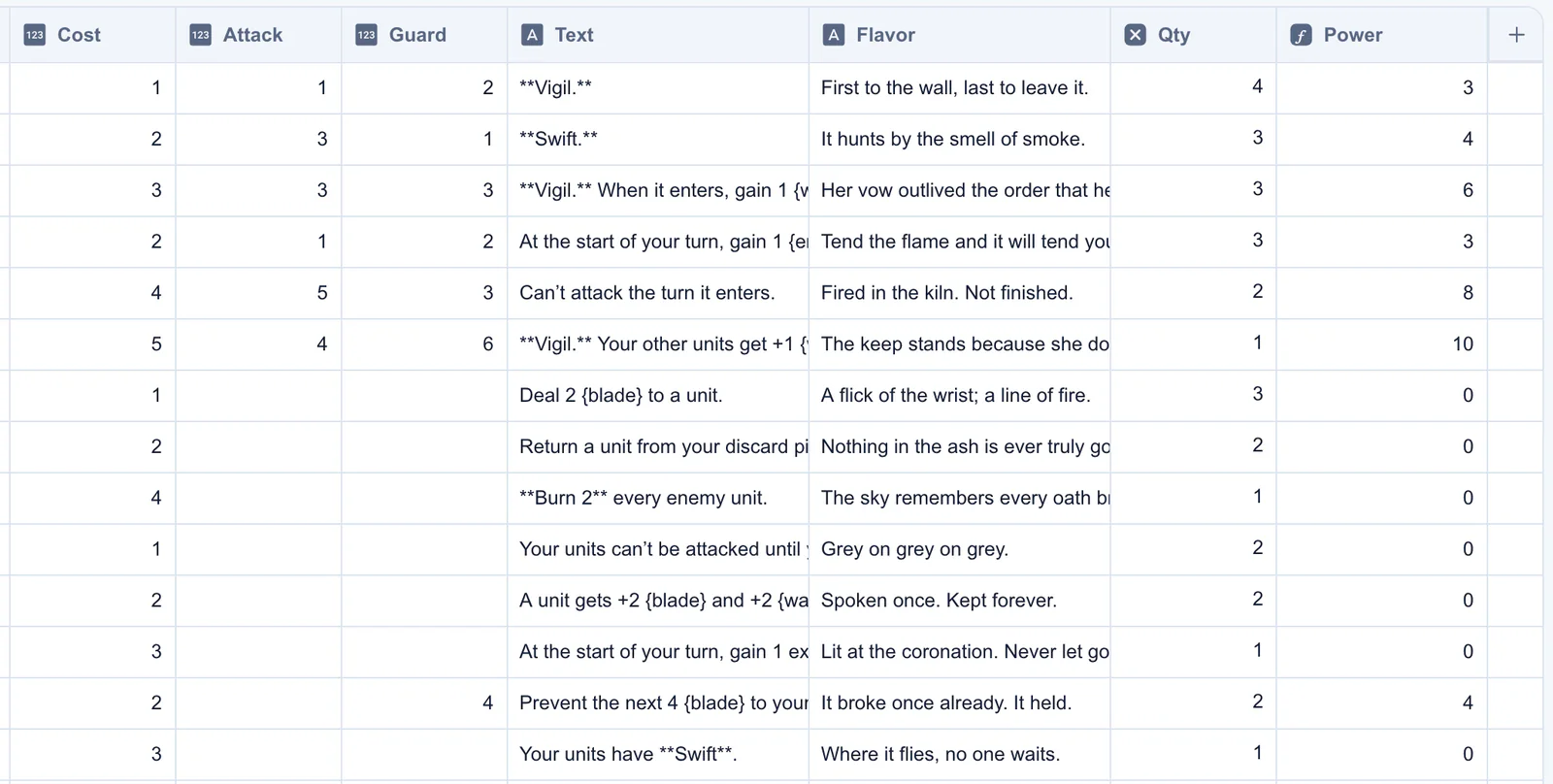
If a formula can't work out a card's value, the cell shows an error in red, and hovering it says why:
- #VALUE!: a value of the wrong kind, such as text where a number goes.
- #DIV/0!: dividing by zero.
- #REF!: a column the formula reads has been deleted.
- #NAME?: a function Decklab AI doesn't know.
- #CYCLE!: columns that work each other out, round in a circle.
An error prints as nothing on the card, and Problems lists the column under Formulas, with the first few cards that fail, so you can't print one by accident.
Step 4: Put it on the card
A formula column is a column like any other. In Design, open Fields and drag it onto the card, or type {{ in a text box and pick it. Its value shows on every card, in Preview, on the playtest table and in every export.
It works everywhere a column does: in rules (show a badge when Power is over 6), as the column that picks a variant, in Preview's sort and filter, and in the Numbers charts.
Formulas worth copying
| You want | Formula | Result |
|---|---|---|
| A total of two stats | [Attack] + [Guard] |
Number |
| Rarity from the cost | IF([Cost] >= 4, "Rare", "Common") |
Text |
| Several bands | IFS([Cost] <= 1, "Cheap", [Cost] <= 3, "Mid", TRUE, "Big") |
Text |
| A row of icons | REPEAT("⚔", [Attack]) |
Text |
| Value for its cost | ROUND(([Attack] + [Guard]) / [Cost], 1) |
Number |
| A card's rank by power | RANK([Power], [Power]) |
Number |
| How many cards share its type | COUNTIF([Type], [Type]) |
Number |
| A type line | UPPER([Type]) & " · " & [Kind] |
Text |
| A number from a variable | [Cost] + $var.tax |
Number |
The functions are the spreadsheet ones, with the same names and the same order of arguments: IF, IFS, SWITCH, AND, OR, NOT, ISBLANK, ROUND, FLOOR, CEIL, MIN, MAX, ABS, LEN, UPPER, LOWER, TRIM, CONCAT, TEXTJOIN, REPEAT, RANK, COUNTIF and SUMIF. The operators are + - * / ^, % for per cent, = <> < > <= >= to compare, and & to join text.
A blank cell counts as 0 in sums, as in a spreadsheet, so [Attack] + [Guard] is 0 on a spell with neither. To leave those cards blank instead, wrap it: IF(ISBLANK([Attack]), "", [Attack] + [Guard]).
Import and export
- Import never writes into a formula column, and Update by key leaves it alone, so importing your spreadsheet again doesn't overwrite what Decklab AI works out. An Excel file's formula cells come in as their values.
- Export › Spreadsheet writes the values to CSV. To Excel, it writes each formula as an Excel formula when Excel works it out the same way, and the value when it can't (
REPEAT,RANK,COUNTIF, variables). A message after the download names the columns written as values. - Starter kits and backups keep formula columns as they are.
Related guides
- How to See Your Deck's Balance: chart a formula column against cost.
- How to Change Card Designs With Rules and Variants: rules can read formula columns.
- How to Import a Card Game.
- Balance Your Cards With Formulas, Not Spreadsheets.